InZOI Mod Kit Packager and Project v1.0
A GUI wrapper around RunUAT for cooking and packaging mods using the stripped inZOI ModKit + Unreal Project.
The mod kit packager was made using AI IDEs like cursor and copilot in visual studio! Most I have done is just test to make sure everything is operational. Thank Claude sonnet 4.6 for the code! Project was, of course, put together using the Mod Kit’s Unreal Engine v5.6.1.
If you’ve tried to package projects using the mod kit, you know that it is not possible through the Unreal Editor itself. Since it is attempting to rebuild the entire game, it will error out. This is because the editor is missing important DLLs that were stripped from the mod kit. However! It is possible to package your project through CLI (command line interface) using RunUAT! This is just a GUI wrapper that simplifies the process.
This makes packaging projects possible without needing to download an entire unreal engine build. All using the Mod Kit itself.
The project is for use with the mod kit.
Requirements
– Windows 10 or 11
– InZOI Mod Kit v5.6.1
– Your own .uproject or a the one included here
How To Use Packager
Make sure your assets are saved within your project before proceeding. This program will not save them for you.
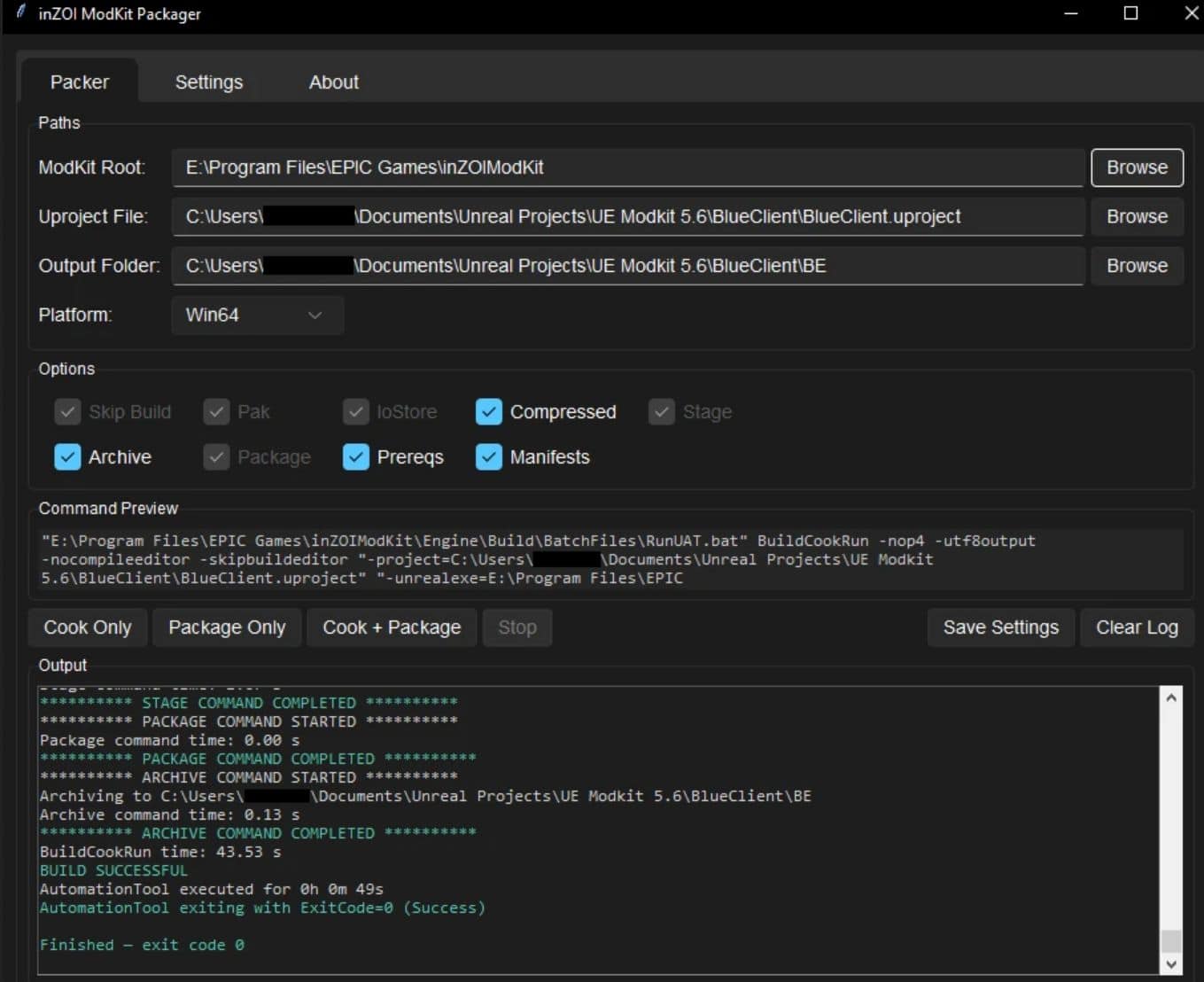
– In the Paths box of the Packer tab set your paths:
– ModKit Root: The root folder of where your Mod Kit Is installed (i.e. C:\Program Files\EPIC Games\inZOIModKit)
– Uproject File: The .uproject file for your custom unreal project (i.e. C:\Users\[YOURNAME]\Documents\BlueClient\BlueClient.uproject)
– Output Folder: The folder you want your packaged files to go (i.e. C:\Users\[YOURNAME]\Documents\BlueClient\Output)
– Next, you can choose the options you want but I recommend keeping them all the same.
– Finally, you can click cook, package or cook + package and wait for it to finish.
– Make sure to check the output log for any warnings (yellow) or errors (red). If all goes well, you’ll get ExitCode=0 (Success) for whatever options you picked.
– When done, you can find your .pak, .ucas and .utoc files in your output folder.
How To Load Custom Project
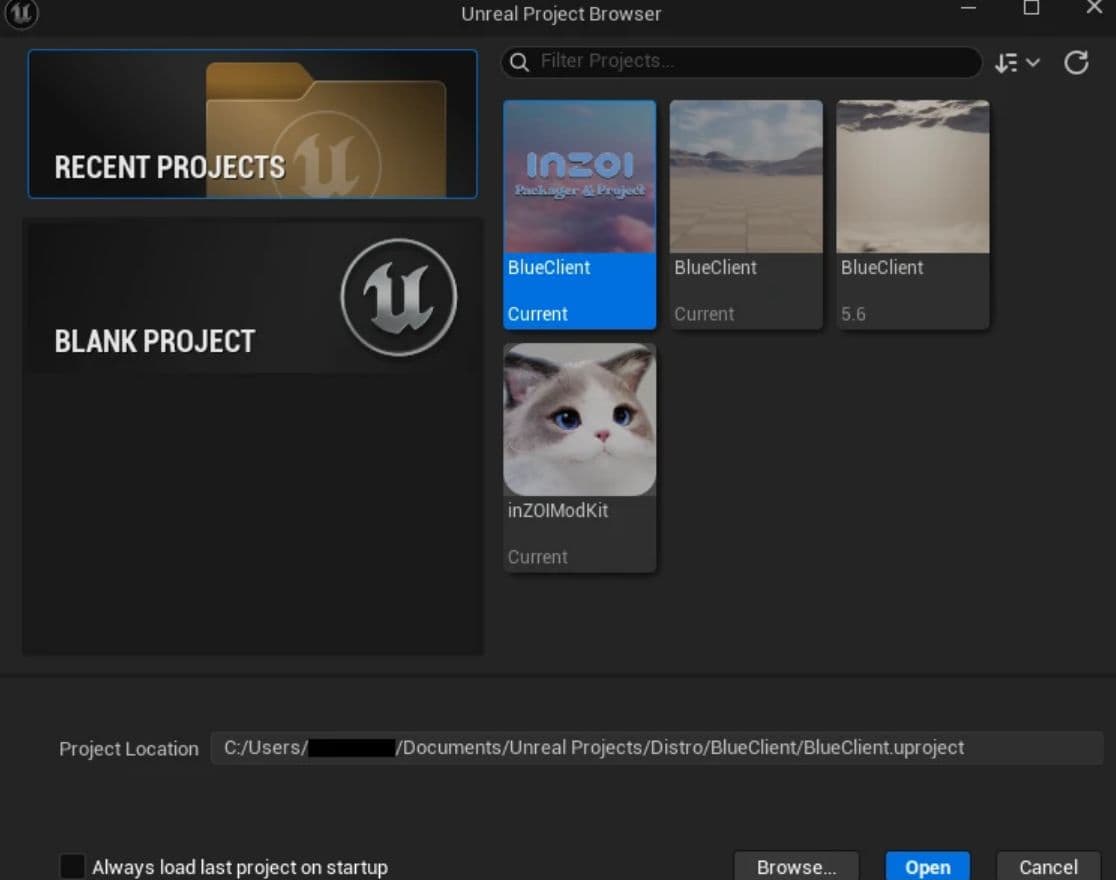
– Launch the UnrealEditor.exe from your mod kit’s Win64 folder (i.e. …\inZOIModKit\Engine\Binaries\Win64) to bypass the stock project auto loading.
– Find the folder that contains the Unreal Engine project you downloaded and open it.
– After it loads, you can do just about anything you could do in the previous Unreal Editor (besides packaging of course).
Project Features
– Same Name as Game’s Folder
– Enable Chunk & Chunk ID assignment
– Disables Shared Material Cache
– Includes PrimaryAssetLabel